

Master dynamic filtering in Databrain with Variable Filters—your key to building flexible, interactive metrics. This guide demonstrates how to transform static SQL queries into dynamic data explorations, empowering users to filter complex datasets effortlessly.
Using Variable Filter in Metric Filter with Custom SQL
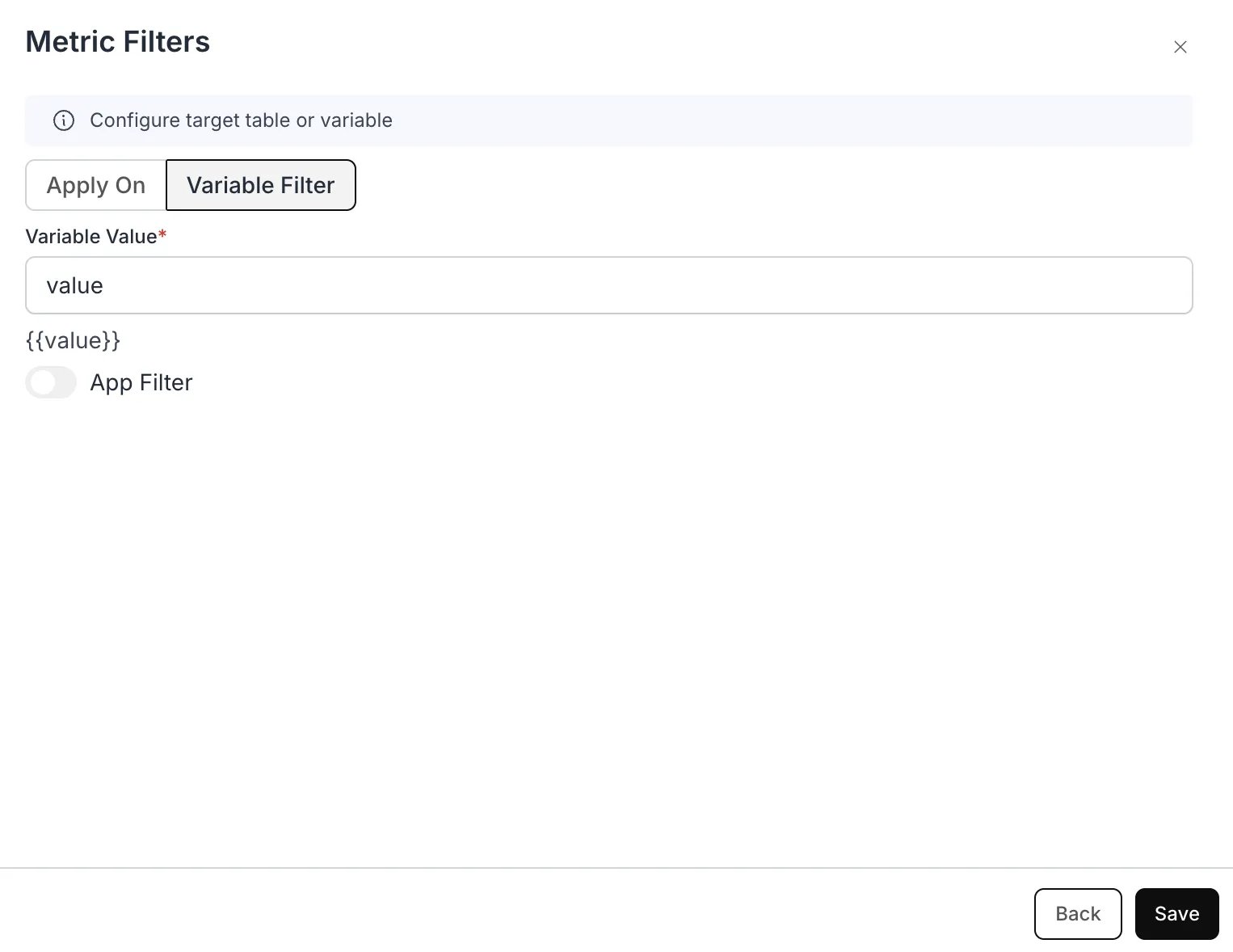
Creating a Metric Filter with Variable Filter:
- Create Metric Filter
- In the “Apply On” section, choose “Variable Filter”.
- Assign Variable Name:
- Assign a variable name, for example,
{{value}}. - Copy the variable
{{value}}for use in your custom SQL query.
- Assign a variable name, for example,
Example Use Case: Dynamic Country Population Analysis
Scenario:
Imagine a dashboard where analysts can quickly filter population data for different countries—without needing to modify the underlying SQL query every time.Purpose of Variable Filter:
Where to use the variable:Filter variables (e.g.
{{value}}, {{global_value}}) are only valid in the WHERE clause of your metric’s SQL (and in the filter’s Apply on logic). Do not use them in SELECT, FROM, or GROUP BY—doing so will trigger: Error: Filter or Client variables detected in the query. There is no built-in way to “inspect” or display the current filter value in a metric.
Example Custom SQL Query with Variable Filter:
- Custom SQL you write:
- Custom SQL added with Variable Filter:
- Resulting SQL:
Working:
- The initial SQL query retrieves all country population data.
- The Variable Filter dynamically adds a condition using
{{value}}. - When a user selects a country from the dashboard, the filter updates the query.
- The results are filtered instantly based on the selected country.