

Client-specific API export and import
When exporting a client dashboard through the API, passsourceClientId to export that client’s saved layout and client-specific metric visibility. The client must belong to the dashboard workspace. If sourceClientId is omitted, Databrain uses the dashboard owner’s client context when available, or the base dashboard layout otherwise.
To create a destination client dashboard from an export, call Create an Empty Dashboard Embed and use either:
importDashboardDatain anapplication/jsonrequest; orimportDashboardDataFilein amultipart/form-datarequest.
accessSettings.isAllowCrossTenantDashboardImport to control whether client-created metrics owned by a different client are eligible.
The destination-client scope is applied consistently to dashboard cards, fullscreen data, underlying data, CSV and raw-data downloads, and dashboard downloads. Automatic system client filters are hidden, while explicit filters created by users remain visible and editable.
Method 1: Export Dashboard and Import External Dashboard
1
Export Dashboard
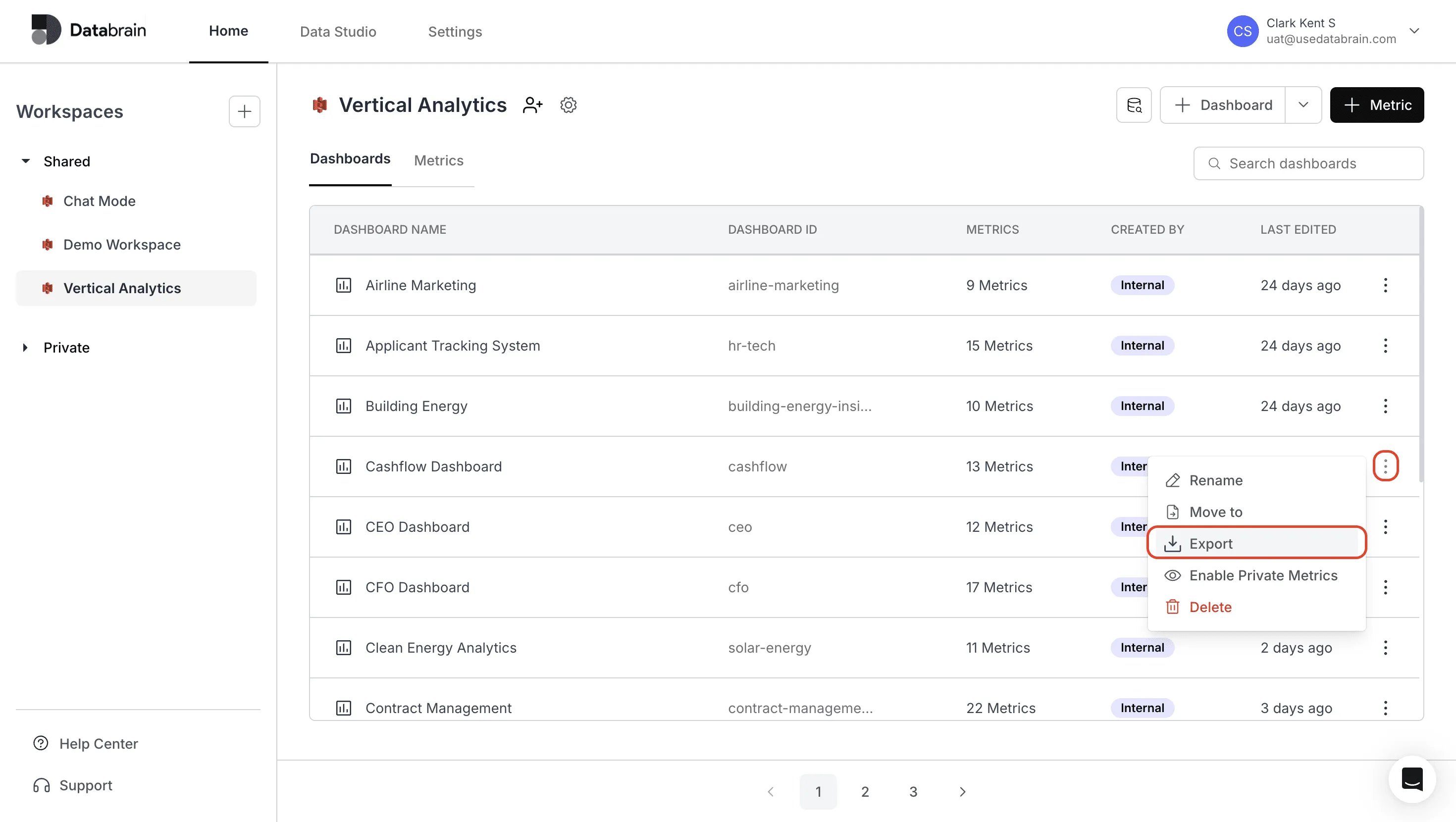
- Navigate to the Dashboards section in the Home page.
- Find the dashboard you want to export.
- Click the vertical three dots (⋮) menu button on the right side of the dashboard row.
- Select Export from the dropdown menu.
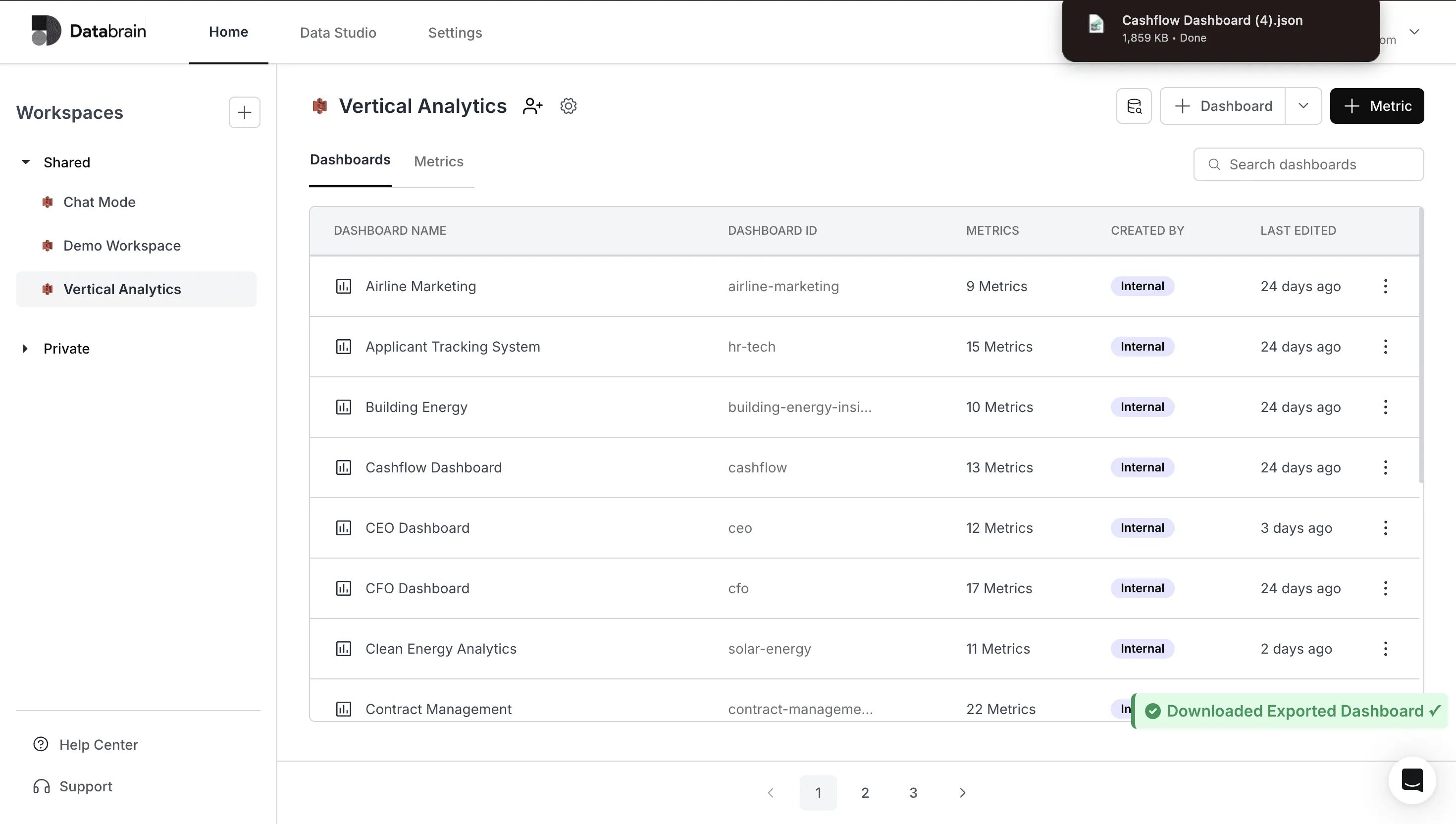
- The dashboard will be automatically downloaded as a JSON file.
2
Import External Dashboard
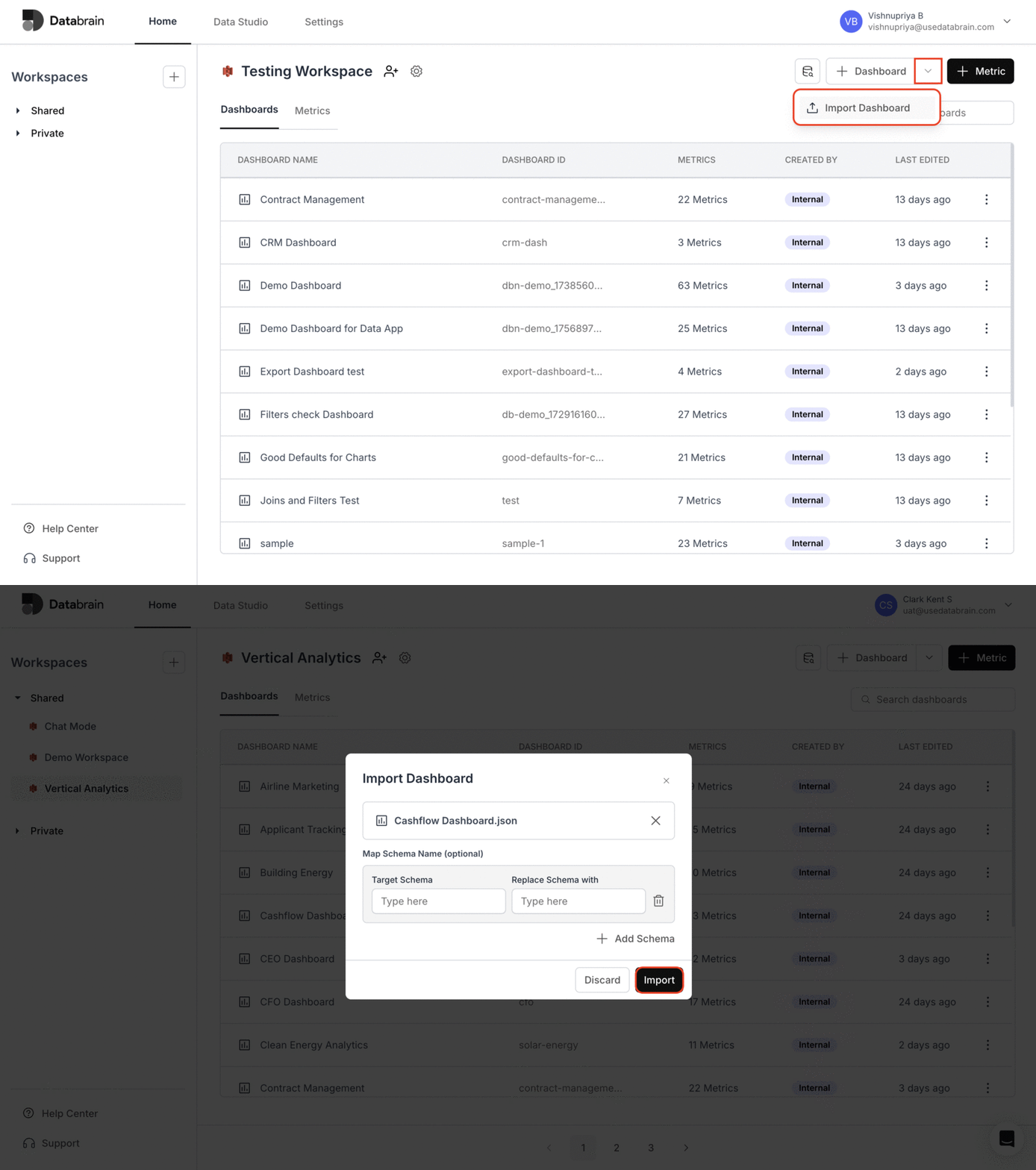
- On the Home page, click the dropdown icon next to the ”+ Dashboard” button.
- Choose the dashboard to import by either dragging and dropping the JSON file or selecting it from your file system.
- (Optional) Configure Schema Mapping:
- Enter the target schema name
- Click Replace Schema if needed
- Use the (+) button to add additional schema mappings
- Click the Import button to complete the process.
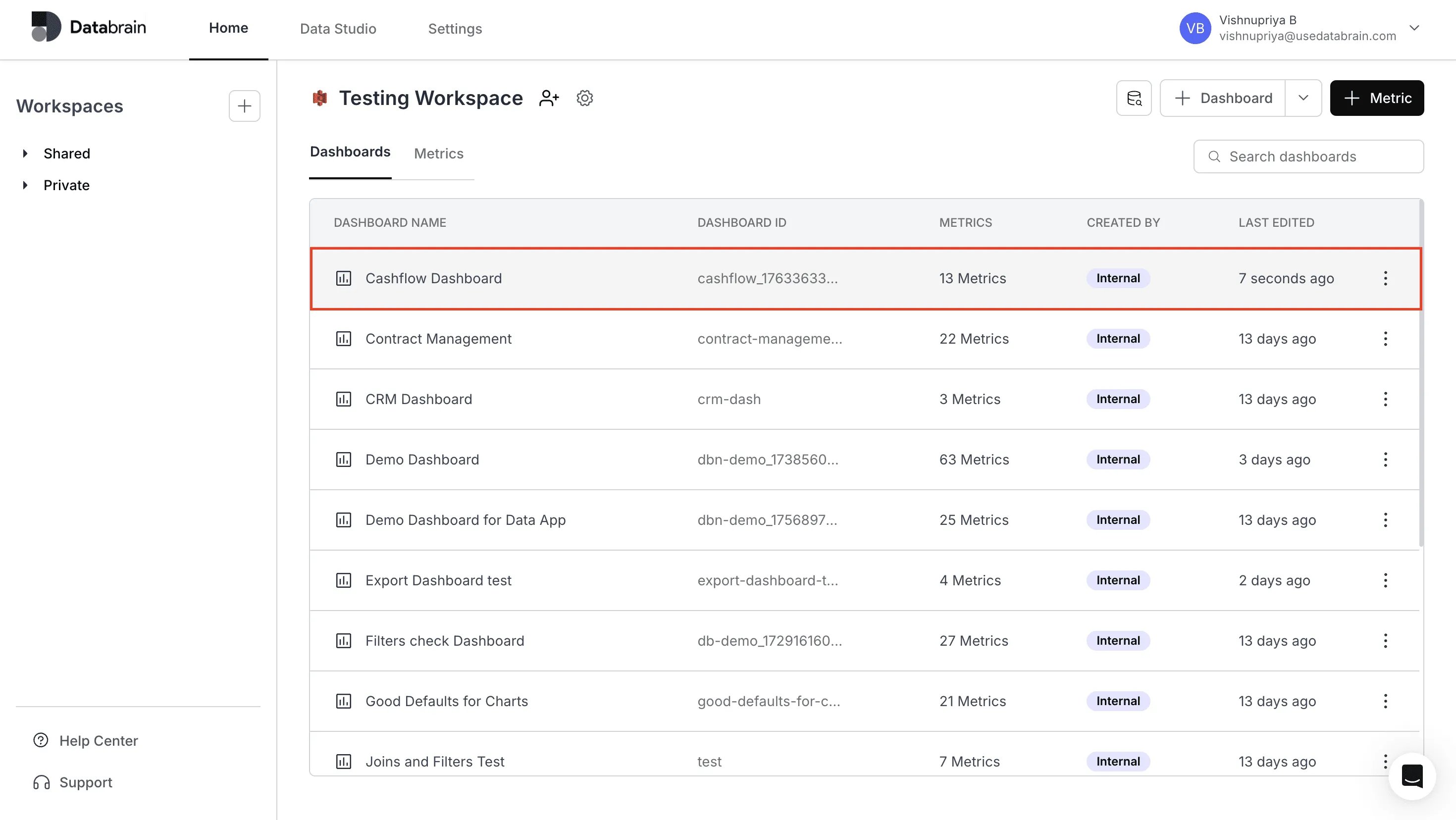
You’ve successfully exported or imported a dashboard.
Your workflow is now streamlined with reusable dashboard structures that can be transferred, backed up, or restored effortlessly.
Your workflow is now streamlined with reusable dashboard structures that can be transferred, backed up, or restored effortlessly.
Method 2: Move an Internal Dashboard to Another Workspace
1
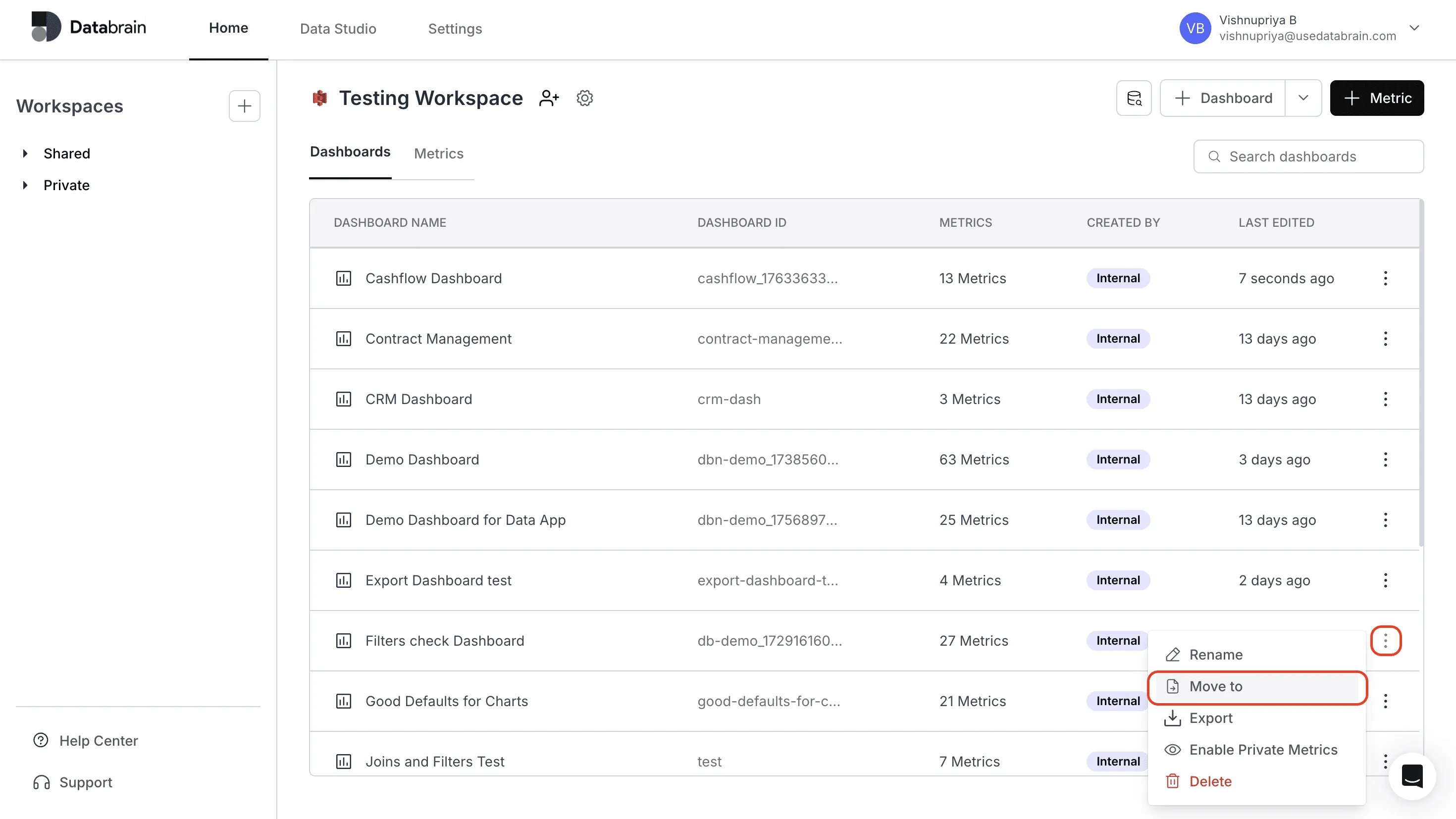
Access the Move to Option
- Navigate to the Dashboards section in the Home page.
- Find the dashboard you want to move.
- Click the vertical three dots (⋮) menu button on the right side of the dashboard row.
- Select Move to from the dropdown menu.
2
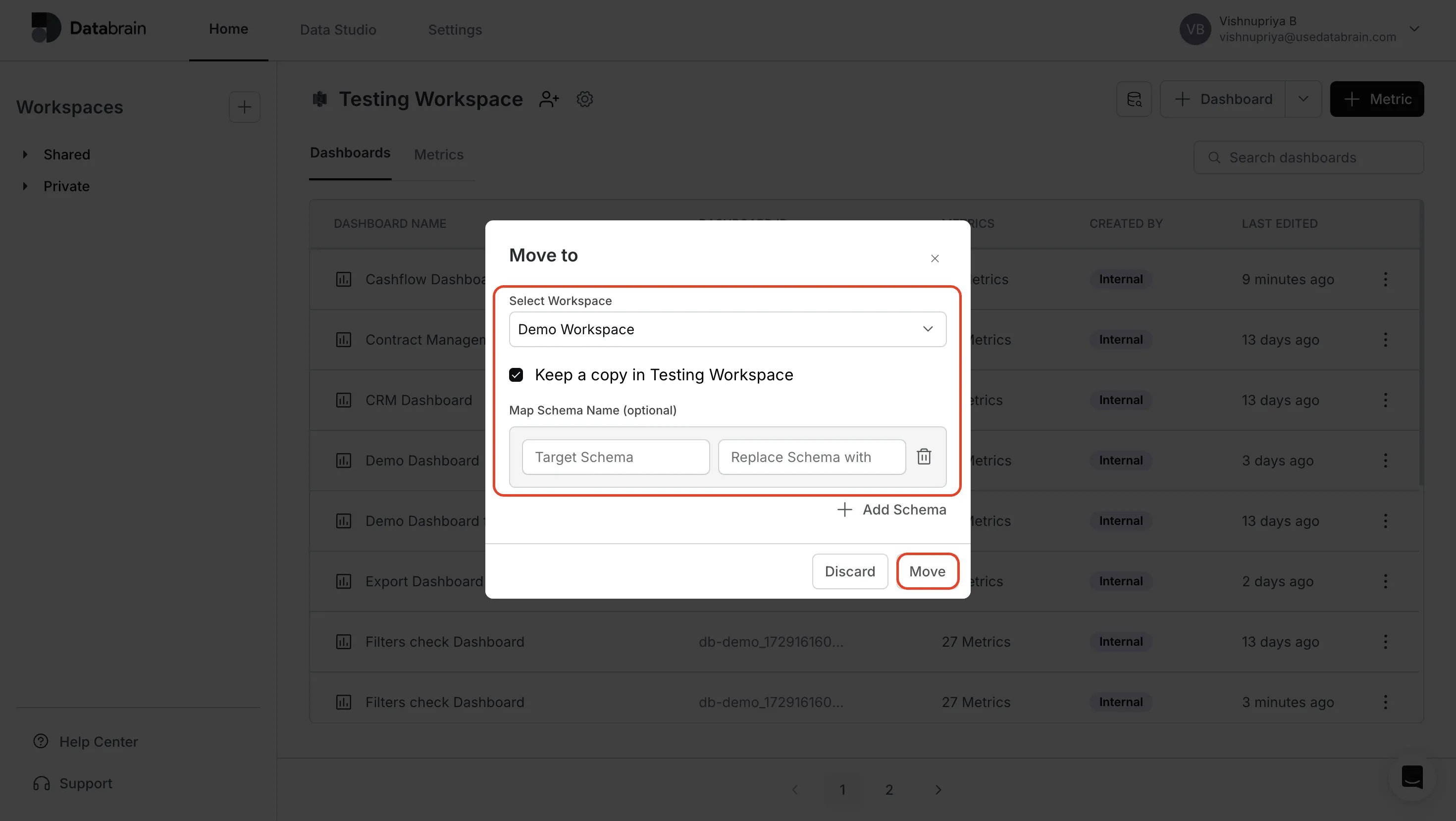
Configure the Move to Option
- Select the workspace to which you want to move the dashboard.
- (Optional) Choose to save a copy of the dashboard in the original workspace.
- (Optional) Configure Schema Mapping:
- Enter the target schema name
- Click Replace Schema if needed
- Use the (+) button to add additional schema mappings
- Click Move to complete the process.

Your dashboard has been successfully moved or duplicated across workspaces.
You can now manage dashboards across teams and environments with improved flexibility and control.
You can now manage dashboards across teams and environments with improved flexibility and control.