

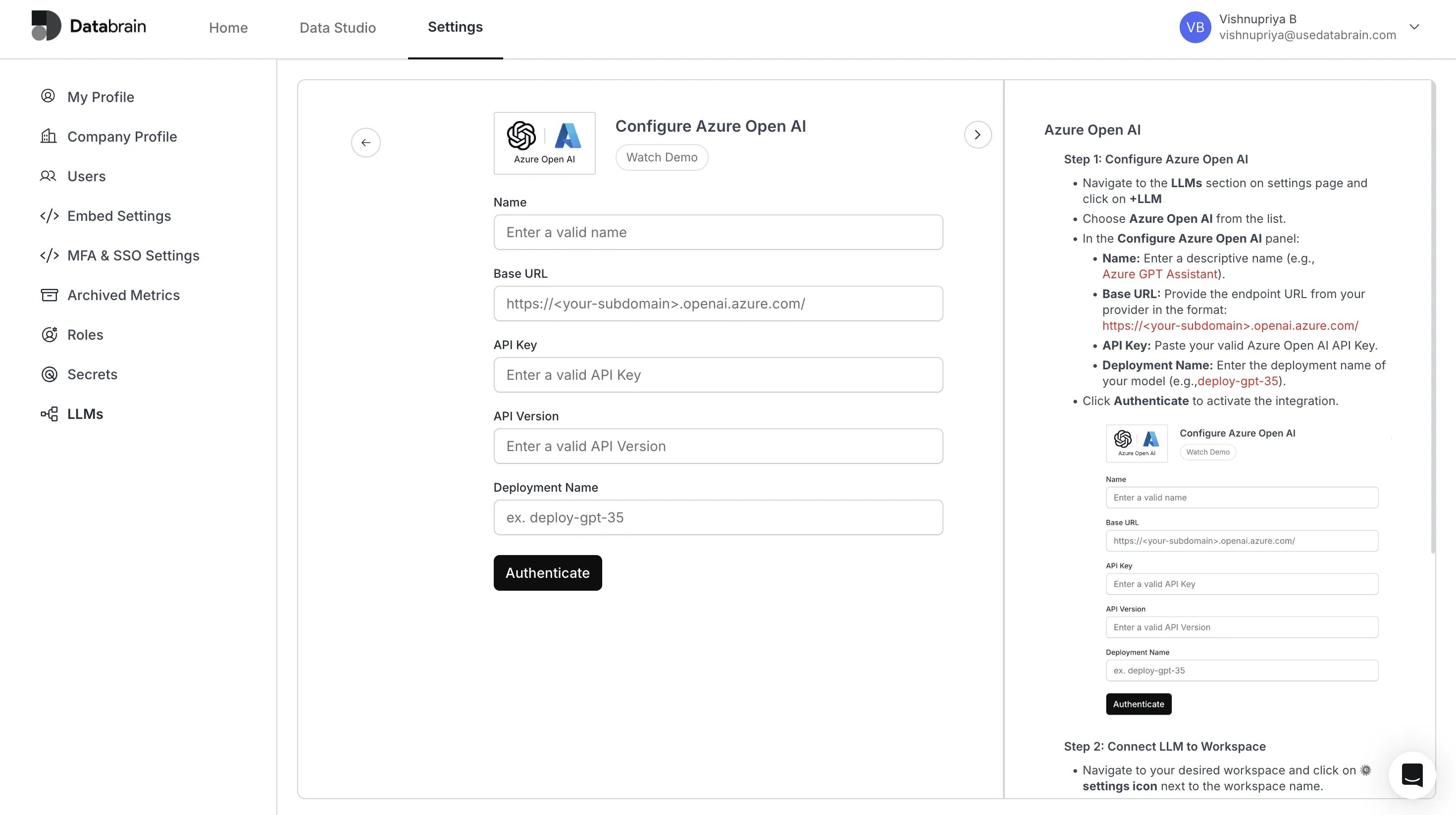
Step 1: Configure Azure Open AI
1
Navigate to the LLMs section on settings page and click on +LLM
2
Choose Azure Open AI from the list.
3
In the Configure Azure Open AI panel:
- Name: Enter a descriptive name (e.g.,
Azure GPT Assistant) - Base URL: Use your Azure Open AI endpoint URL in the format:
https://<your-subdomain>.openai.azure.com/ - API Key: Paste your valid Azure Open AI API Key
- Deployment Name: Enter the deployment name of your model (e.g.,
deploy-gpt-35)
4
Click Authenticate to activate the integration.
Step 2: Connect LLM to Workspace
1
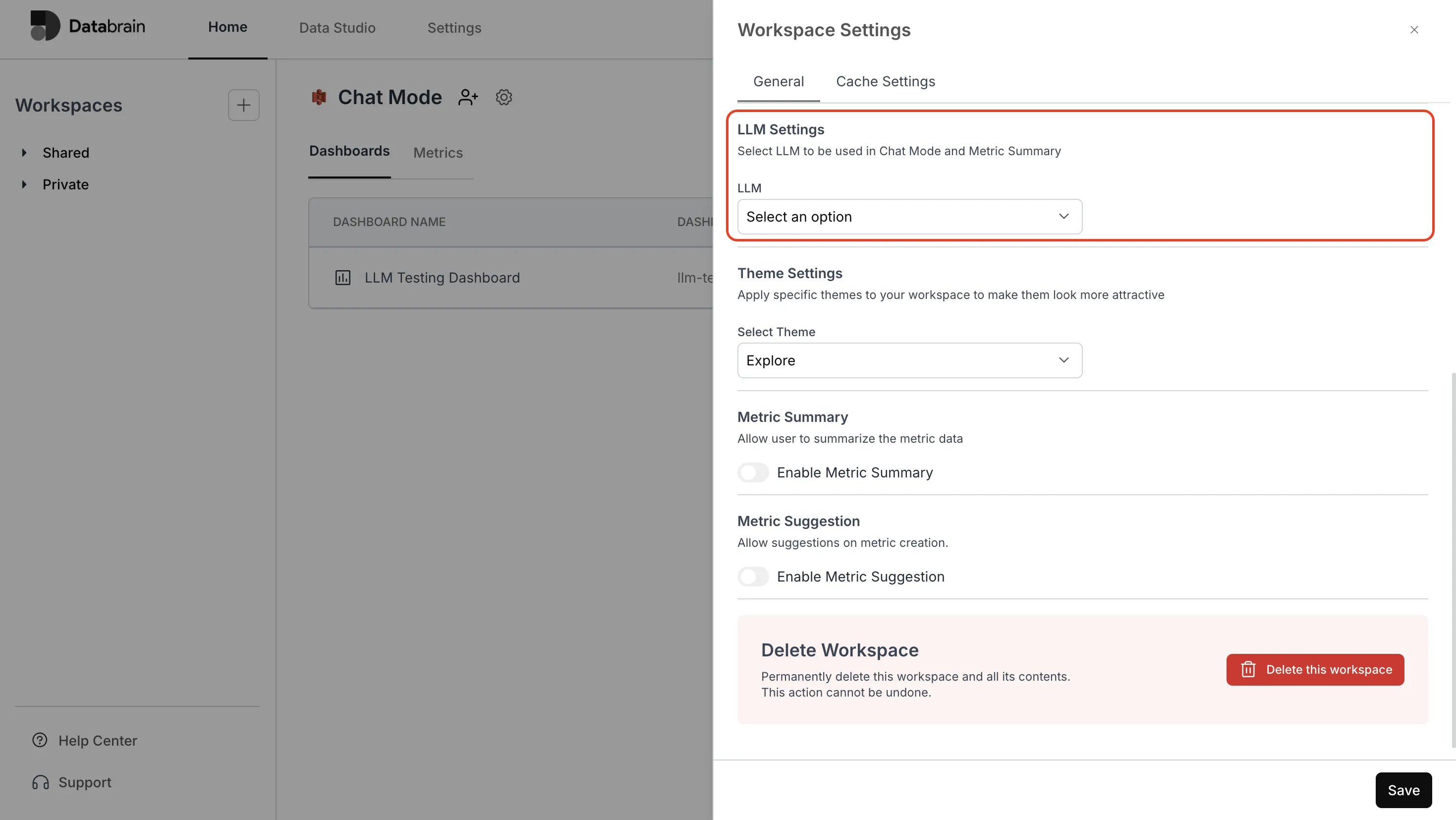
Navigate to your desired workspace and click on ⚙️ settings icon next to the workspace name.
2
Under the General tab:
- Scroll to the LLM section near the bottom
- From the LLM dropdown, choose the Azure Open AI model you just configured
3
Optionally enable Metric Summary and choose the summary Type from the following options:
Technical and Insight Summary, Forecast and Trend Analysis, Comparative and Anomaly Detection, Custom.
Technical and Insight Summary, Forecast and Trend Analysis, Comparative and Anomaly Detection, Custom.
4
Click Save to apply changes.
You’ve successfully connected Azure Open AI with your Databrain workspace!
Your integration is now live — enabling advanced Azure-powered LLM capabilities for intelligent insights, contextual summaries, and seamless data exploration across your dashboards.
Your integration is now live — enabling advanced Azure-powered LLM capabilities for intelligent insights, contextual summaries, and seamless data exploration across your dashboards.