

What You’ll Build
By the end of this guide, you’ll have:- ✅ A secure backend endpoint that generates guest tokens
- ✅ A frontend application with embedded DataBrain dashboards
- ✅ Row-level security for multi-tenant access control (optional)
- ✅ Customized dashboard appearance matching your brand
- ✅ Production-ready authentication flow
Quick Navigation
Jump to any section:- Prerequisites
- Architecture Overview
- Step 1: Create Workspace & Dashboard
- Step 2: Create Data App
- Step 3: Backend Integration
- Step 4: Frontend Integration
- Step 5: Testing & Deployment
- Next Steps
Prerequisites
Ensure you have the following before starting:Architecture Overview
Flow Diagram: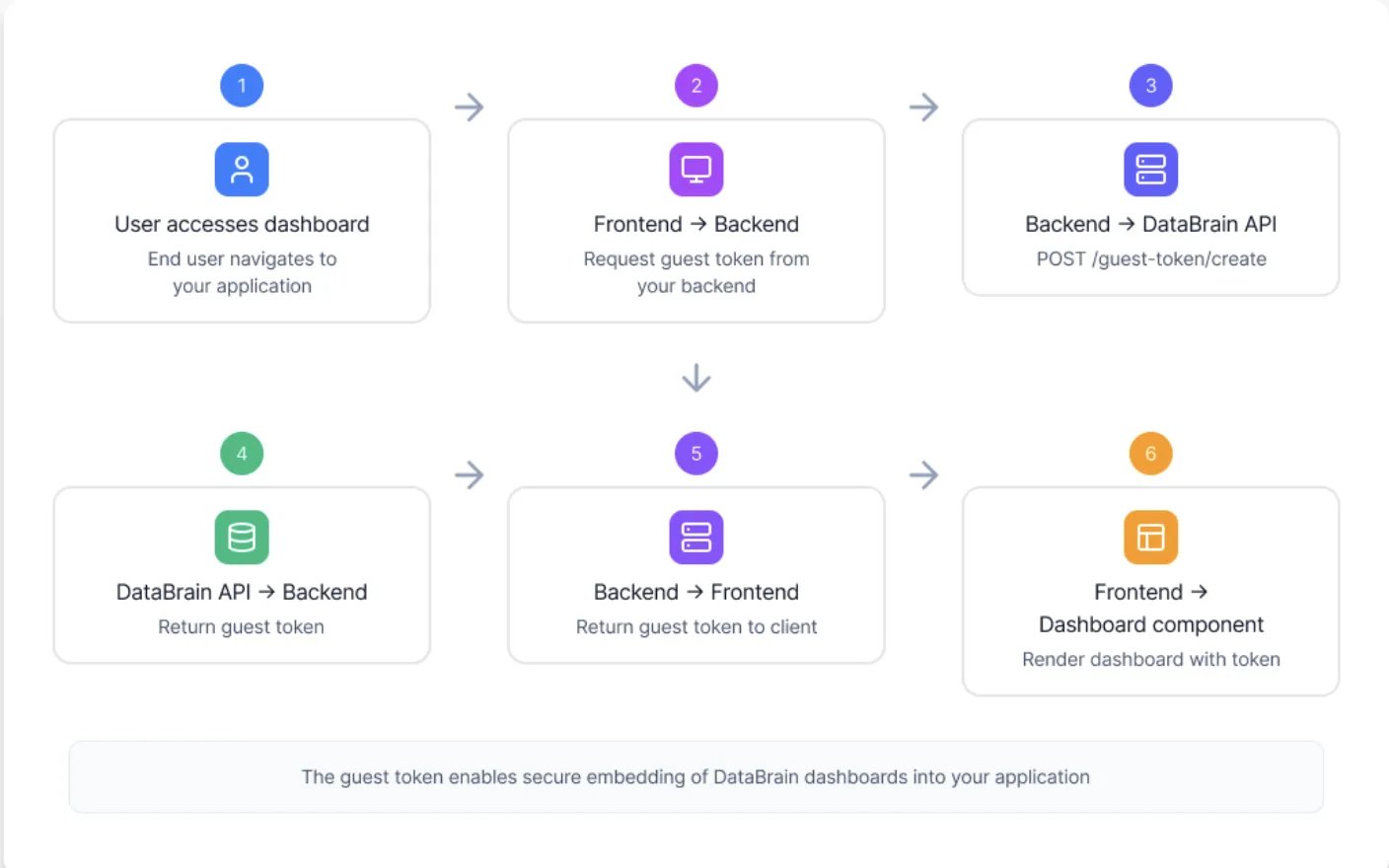
Step 1: Create Workspace & Dashboard
1.1 Create a Workspace
1
Navigate to Workspaces
Go to the DataBrain platform and click “Create Workspace”
2
Configure Workspace
- Enter workspace name
- Select workspace type (standard or private)
- Configure initial settings
Create Workspace Guide
Detailed workspace creation guide
1.2 Connect Data Source
1
Add Data Source
Click “Add Data Source” in your workspace
2
Select Database Type
Choose from 18+ supported databases
3
Enter Credentials
Provide connection details (host, port, credentials)
4
Test Connection
Verify the connection works
5
Configure Tenancy
Set up multi-tenancy if needed
Data Sources Guide
Connect your database
1.3 Create Dashboard
1
Create Dashboard
Click “New Dashboard” in your workspace
2
Add Metrics
Create charts, tables, and KPIs using the visual builder
3
Add Filters
Configure dashboard-level filters for interactivity
4
Customize Layout
Arrange metrics and adjust sizing
5
Save Dashboard
Save and note your dashboard ID
Create Dashboard Guide
Build your first dashboard
Step 1 Complete!Before moving to Step 2, verify you have:
- Created a workspace in DataBrain
- Successfully connected at least one data source
- Built and saved a dashboard with metrics
- Noted your dashboard ID for later use
Step 2: Create Data App
A Data App packages your dashboards for embedding with security and configuration.2.1 Navigate to Data Apps
Go to Data → Data Apps in your workspace2.2 Create New Data App
1
Click New Data App
Start creating a new Data App
2
Configure Basic Settings
3
Select Dashboards
- Choose the dashboards you want to expose through the Data App for embedding.
- Browse and select one or more dashboards from your workspace.
- Only selected dashboards can be accessed via guest tokens.
- Save the Data App to generate and use their embed IDs in embedding.
- Tip: Add only relevant dashboards to keep access secure and organized.
4
Configure Settings
- Set default permissions
- Configure multi-tenancy
- Set token expiry defaults
5
Save and Get API Token
Copy your API token - you’ll need this for generating guest tokens
2.3 Find Your Dashboard ID
1
Open Data App
Navigate to your Data App
2
Find Dashboard Section
Look for the dashboards list
3
Copy Embed ID
Each dashboard has a unique ID (e.g.,
sales-dashboard-2024)Finding Embed IDs
Detailed guide on locating IDs
Step 2 Complete!Before moving to Step 3, verify you have:
- Created a Data App in your workspace
- Added your dashboard(s) to the Data App
- Copied and securely stored your API token
- Have your Data App name ready (e.g.,
customer-analytics-app)
Step 3: Backend Integration
Set up your backend to generate guest tokens securely.3.1 Store API Token
Add your DataBrain API token to environment variables:3.2 Implement Token Generation
Create an API endpoint to generate guest tokens:Verify Token Generation
Test your endpoint to ensure tokens are being generated correctly:Step 3 Complete!Before moving to Step 4, verify you have:
- Environment variables configured with API token
- Backend endpoint created for token generation
- Successfully tested token generation (returns valid JWT)
- Tokens are secured server-side (never exposed to frontend)
Step 4: Frontend Integration
4.1 Install Package
4.2 Create Dashboard Component
Basic Implementation (All Frameworks):Step 4 Complete!Before moving to Step 5, verify you have:
- Installed
@databrainhq/pluginpackage - Created a dashboard component in your frontend
- Dashboard successfully fetches token from your backend
- Dashboard renders with data from DataBrain
Step 5: Testing & Deployment
5.1 Test Locally
1
Start Backend
Ensure your backend token endpoint is running
2
Start Frontend
Run your frontend development server
3
Verify Dashboard Loads
Check that the dashboard renders correctly
4
Test Interactions
- Click on charts
- Apply filters
- Download CSV
- Test responsive behavior
5.2 Environment Variables
Set up environment variables for each environment:🎉 Congratulations! You’re Production-ReadyYour embedded analytics are now live! You’ve successfully:
- Created DataBrain workspace and dashboards
- Set up secure backend token generation
- Integrated dashboard into your frontend
- Deployed to production
Next Steps
Multi-Tenancy
Implement row-level security
SSO Integration
Set up single sign-on
Advanced Customization
Deep dive into options
Solution Patterns
Common implementation patterns